How to Build a Color System for Your Design with CSS Variables
Step-by-step guide to building a scalable color system using CSS custom properties. Covers raw palette, semantic tokens, dark mode, RGBA patterns, and contrast validation.
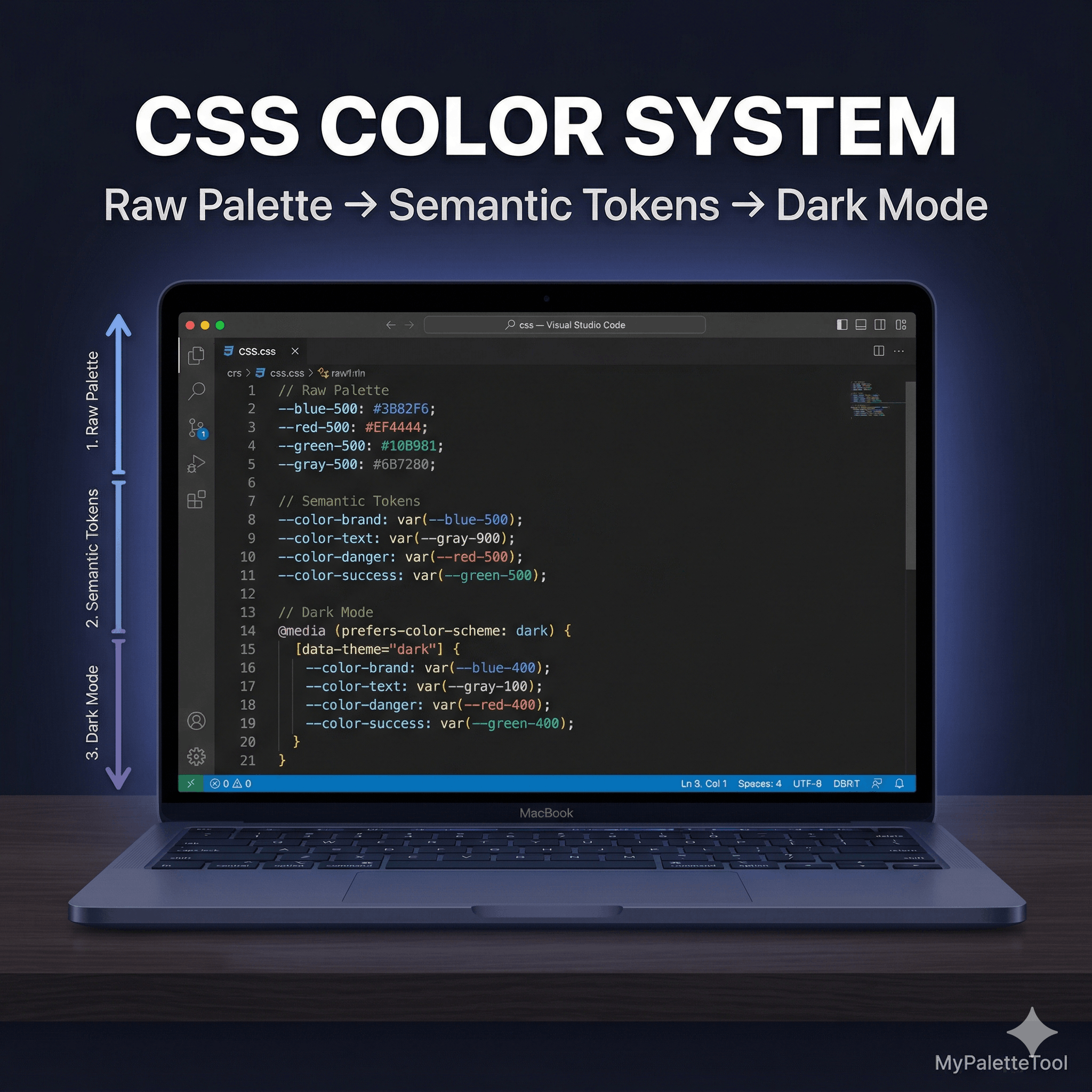
How to Build a Color System for Your Design with CSS Variables
A color system is the difference between a design that scales and one that becomes unmaintainable the moment someone asks to change the brand color. CSS custom properties (variables) are the most practical way to implement a color system — they work everywhere, require no build tools, and integrate with any framework. Here's how to build one from scratch.
What Is a Color System?
A color system is a structured set of color decisions with clear rules for when and how each color is used. It answers questions like:
- What color is a primary button?
- What color is destructive text?
- What should a disabled state look like?
- How do these colors change in dark mode?
Without a system, each developer makes individual decisions that accumulate into visual inconsistency. With a system, you make the decision once and enforce it automatically through variables.
Why CSS Variables (Custom Properties)?
CSS custom properties have several advantages over other approaches:
Compared to SASS variables:
- Live in the browser, not the build step
- Can be changed at runtime with JavaScript
- Can be scoped to specific elements
- Inherited through the DOM — perfect for theming
Compared to Tailwind config:
- Framework-agnostic — works in any CSS
- Usable directly in inline styles and JavaScript
- No build step required
Compared to hardcoded values:
- Change the brand color once, updates everywhere
- Easy dark mode by redefining variables
- Readable, semantic naming
Step 1: Generate Your Palette
Before writing any CSS, you need a solid palette. Use MyPaletteTool to generate yours:
- Open the Color Palette Generator
- Choose a harmony type based on your brand personality:
- Monochromatic — minimal, sophisticated
- Complementary — bold, high-contrast
- Analogous — natural, harmonious
- Generate until you find a palette that fits
- Lock your brand primary color
- Export as CSS or note the hex values
For a complete color system, you'll need:
- 1 primary brand color (with light/dark variants)
- 1 secondary/accent color
- 1 neutral gray scale (5–7 stops)
- 3–4 semantic colors (success, warning, error, info)
Step 2: Build the Raw Palette Layer
Start with raw color values — no semantic meaning yet. These are your building blocks:
/* ─── Raw palette ─── */
/* Don't use these directly in components */

:root {
  /* Brand blue scale */
  --blue-50:  #EFF6FF;
  --blue-100: #DBEAFE;
  --blue-200: #BFDBFE;
  --blue-300: #93C5FD;
  --blue-400: #60A5FA;
  --blue-500: #3B82F6;  /* base */
  --blue-600: #2563EB;
  --blue-700: #1D4ED8;
  --blue-800: #1E40AF;
  --blue-900: #1E3A8A;

  /* Neutral gray scale */
  --gray-50:  #F9FAFB;
  --gray-100: #F3F4F6;
  --gray-200: #E5E7EB;
  --gray-300: #D1D5DB;
  --gray-400: #9CA3AF;
  --gray-500: #6B7280;
  --gray-600: #4B5563;
  --gray-700: #374151;
  --gray-800: #1F2937;
  --gray-900: #111827;

  /* Accent amber */
  --amber-400: #FBBF24;
  --amber-500: #F59E0B;
  --amber-600: #D97706;

  /* Semantic palette */
  --green-500: #22C55E;
  --green-700: #15803D;
  --red-500:   #EF4444;
  --red-700:   #B91C1C;
  --yellow-400: #FACC15;
  --yellow-600: #CA8A04;
}
Generating the blue scale: Enter your brand blue in MyPaletteTool with Monochromatic harmony. The 5-color result maps to the 200/400/500/700/900 stops. For a full 11-stop scale, use the Color Converter to adjust lightness at 10% intervals.
Step 3: Build the Semantic Token Layer
Now map raw colors to semantic roles. This is the layer that components actually use:
/* ─── Semantic tokens ─── */
/* These are what your components reference */

:root {
  /* Brand / interactive */
  --color-brand:          var(--blue-500);
  --color-brand-hover:    var(--blue-600);
  --color-brand-active:   var(--blue-700);
  --color-brand-subtle:   var(--blue-50);
  --color-brand-muted:    var(--blue-100);

  /* Accent */
  --color-accent:         var(--amber-500);
  --color-accent-hover:   var(--amber-600);

  /* Surfaces */
  --color-bg:             var(--gray-50);
  --color-surface:        #FFFFFF;
  --color-surface-raised: var(--gray-50);
  --color-surface-sunken: var(--gray-100);
  --color-border:         var(--gray-200);
  --color-border-strong:  var(--gray-300);

  /* Text */
  --color-text:           var(--gray-900);
  --color-text-secondary: var(--gray-500);
  --color-text-disabled:  var(--gray-300);
  --color-text-inverse:   #FFFFFF;
  --color-text-brand:     var(--blue-600);

  /* Feedback */
  --color-success:        var(--green-500);
  --color-success-bg:     #F0FDF4;
  --color-success-text:   var(--green-700);

  --color-warning:        var(--yellow-400);
  --color-warning-bg:     #FEFCE8;
  --color-warning-text:   var(--yellow-600);

  --color-error:          var(--red-500);
  --color-error-bg:       #FEF2F2;
  --color-error-text:     var(--red-700);

  --color-info:           var(--blue-500);
  --color-info-bg:        var(--blue-50);
  --color-info-text:      var(--blue-700);
}
Step 4: Apply to Components
Now write component styles using only semantic tokens — never raw values:
/* Button */
.btn-primary {
  background-color: var(--color-brand);
  color: var(--color-text-inverse);
  border: 1px solid var(--color-brand);
}

.btn-primary:hover {
  background-color: var(--color-brand-hover);
  border-color: var(--color-brand-hover);
}

.btn-primary:active {
  background-color: var(--color-brand-active);
}

.btn-primary:disabled {
  background-color: var(--color-border);
  color: var(--color-text-disabled);
  cursor: not-allowed;
}

/* Card */
.card {
  background-color: var(--color-surface);
  border: 1px solid var(--color-border);
  color: var(--color-text);
}

/* Alert */
.alert-success {
  background-color: var(--color-success-bg);
  border-left: 3px solid var(--color-success);
  color: var(--color-success-text);
}

.alert-error {
  background-color: var(--color-error-bg);
  border-left: 3px solid var(--color-error);
  color: var(--color-error-text);
}

/* Input */
.input {
  background-color: var(--color-surface);
  border: 1px solid var(--color-border);
  color: var(--color-text);
}

.input:focus {
  border-color: var(--color-brand);
  box-shadow: 0 0 0 3px rgba(var(--color-brand-rgb, 59, 130, 246), 0.15);
}
Step 5: Add Dark Mode
This is where CSS variables truly shine. Override semantic tokens inside a dark theme selector — zero changes to component styles:
/* ─── Dark mode ─── */
[data-theme="dark"],
.dark {
  --color-bg:             var(--gray-900);
  --color-surface:        var(--gray-800);
  --color-surface-raised: var(--gray-700);
  --color-surface-sunken: var(--gray-900);
  --color-border:         var(--gray-700);
  --color-border-strong:  var(--gray-600);

  --color-text:           var(--gray-50);
  --color-text-secondary: var(--gray-400);
  --color-text-disabled:  var(--gray-600);

  --color-brand:          var(--blue-400);
  --color-brand-hover:    var(--blue-300);
  --color-brand-active:   var(--blue-200);
  --color-brand-subtle:   var(--blue-900);
  --color-brand-muted:    var(--blue-800);
}
To activate dark mode:
// Toggle with JavaScript
document.documentElement.setAttribute('data-theme', 'dark');

// Or follow system preference
const prefersDark = window.matchMedia('(prefers-color-scheme: dark)').matches;
if (prefersDark) {
  document.documentElement.setAttribute('data-theme', 'dark');
}
Or use CSS media query:
@media (prefers-color-scheme: dark) {
  :root {
    --color-surface: var(--gray-800);
    /* ... rest of dark overrides */
  }
}
Step 6: RGBA Trick for Transparent Variants
Store RGB components alongside hex values to enable easy rgba() usage:
:root {
  --color-brand:     #3B82F6;
  --color-brand-rgb: 59, 130, 246;  /* same color, RGB components */
}

/* Usage */
.card-shadow {
  box-shadow: 0 4px 24px rgba(var(--color-brand-rgb), 0.15);
}

.overlay {
  background: rgba(var(--color-brand-rgb), 0.8);
}
Convert your hex to RGB at ToolCenterLab HEX-RGB Converter.
Step 7: Validate Contrast
Before shipping, verify that every text/background combination in your semantic system passes WCAG AA.
Critical pairs to check with Contrast Checker:
| Token | On Token | Minimum ratio |
|---|---|---|
--color-text |
--color-surface |
7:1 (AA body text) |
--color-text-secondary |
--color-surface |
4.5:1 |
--color-text-inverse |
--color-brand |
4.5:1 (button text) |
--color-text-brand |
--color-surface |
4.5:1 (links) |
--color-success-text |
--color-success-bg |
4.5:1 |
--color-error-text |
--color-error-bg |
4.5:1 |
Repeat checks for dark mode variants.
Complete Example: Full System File
/* colors.css — complete color system */

/* ── 1. Raw palette ── */
:root {
  --blue-50: #EFF6FF; --blue-500: #3B82F6; --blue-900: #1E3A8A;
  --gray-50: #F9FAFB; --gray-500: #6B7280; --gray-900: #111827;
  --green-500: #22C55E; --green-700: #15803D;
  --red-500: #EF4444;   --red-700: #B91C1C;
  /* ... full scales */
}

/* ── 2. Semantic tokens (light mode) ── */
:root {
  --color-brand:          var(--blue-500);
  --color-brand-rgb:      59, 130, 246;
  --color-surface:        #FFFFFF;
  --color-text:           var(--gray-900);
  --color-text-secondary: var(--gray-500);
  --color-border:         #E5E7EB;
  --color-success:        var(--green-500);
  --color-error:          var(--red-500);
}

/* ── 3. Dark mode overrides ── */
[data-theme="dark"] {
  --color-surface:        var(--gray-800);
  --color-text:           var(--gray-50);
  --color-text-secondary: var(--gray-400);
  --color-border:         var(--gray-700);
  --color-brand:          #60A5FA; /* lighter for dark bg */
}
That's it. Import this file once, and every component gets theming for free.
Integrating with CSS Gradient Generator
For gradients using your brand colors, reference your variables directly:
.hero {
  background: linear-gradient(
    135deg,
    var(--color-brand) 0%,
    var(--color-brand-active) 100%
  );
}
Or build gradients at ToolCenterLab CSS Gradient Generator and replace the hardcoded colors with your variables after copying.
Exporting to Tailwind
If you use Tailwind, your CSS variable system maps directly to the config. Export your palette from MyPaletteTool and use our Tailwind export guide to integrate both systems.
Conclusion
A CSS variable color system gives you:
- One place to change any color — affects the entire app
- Free dark mode — just override semantic tokens
- Readable code —
var(--color-brand)instead of#3B82F6 - Safer design — only approved semantic pairings get used
Build yours in three steps:
- Generate your palette at MyPaletteTool
- Convert to RGB at ToolCenterLab for rgba() usage
- Verify contrast at Contrast Checker
Related Articles
Build your color palette at MyPaletteTool, convert formats at ToolCenterLab, and ship a consistent, accessible color system.