How to Check Color Contrast for WCAG Compliance
Complete guide to WCAG color contrast requirements. Learn contrast ratios, AA vs AAA standards, how to use a contrast checker, and how to build an accessible color system.
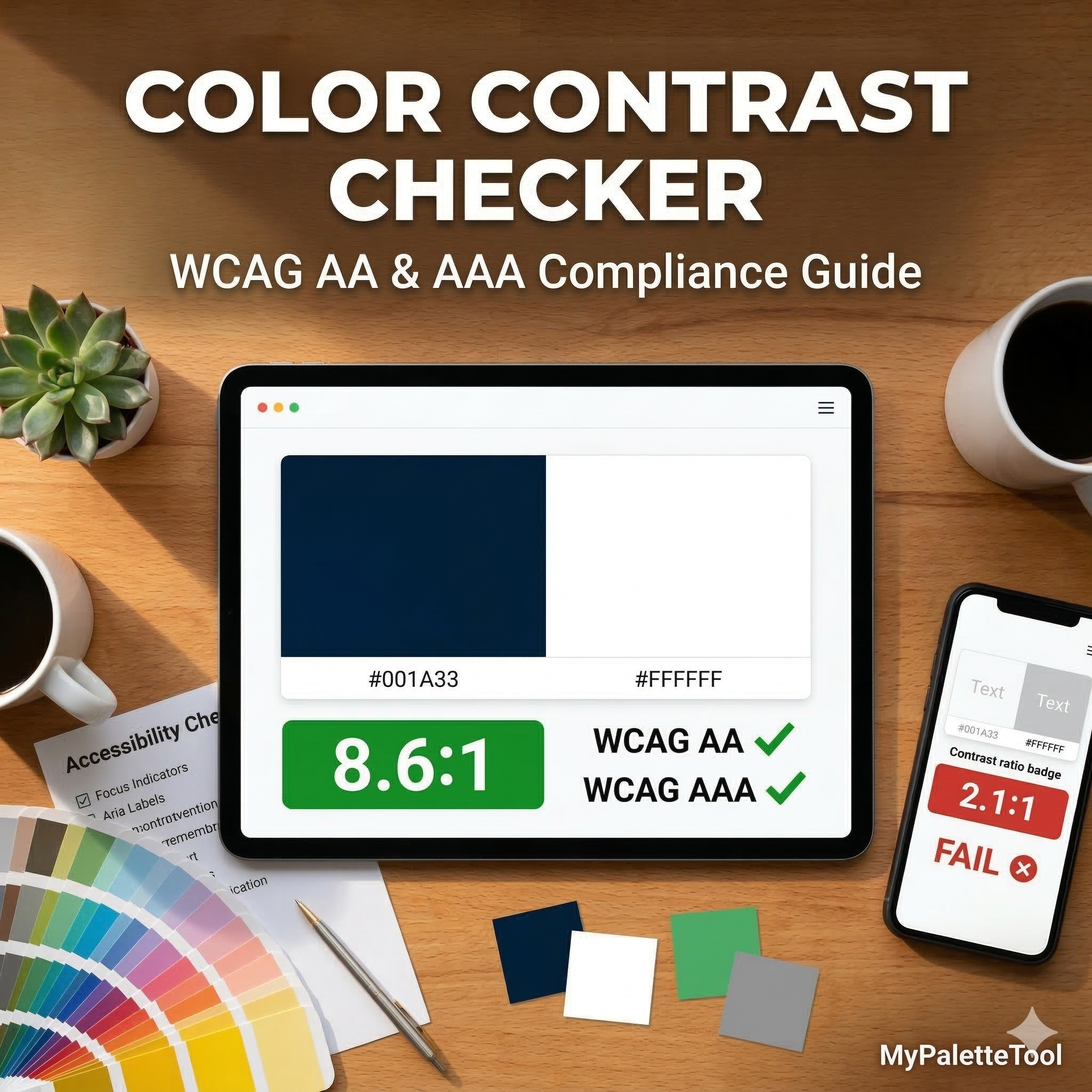
How to Check Color Contrast for WCAG Compliance
Color contrast is one of the most critical — and most overlooked — aspects of web accessibility. Choosing beautiful colors is not enough if users can't actually read your content. This guide explains WCAG contrast requirements and how to check compliance in seconds.
Why Color Contrast Matters
Over 300 million people have some form of color vision deficiency, and 2.2 billion have near or distance vision impairment. Poor contrast makes text hard or impossible to read for:
- People with low vision
- People with color blindness
- Everyone in bright sunlight or on low-quality screens
- Older adults whose vision sensitivity decreases with age
Beyond accessibility, contrast affects everyone: even users with perfect vision read faster and with less fatigue when contrast is sufficient.
What Is WCAG?
WCAG (Web Content Accessibility Guidelines) is the international standard for web accessibility, published by the W3C. The most widely adopted version is WCAG 2.1, with WCAG 2.2 as the current standard.
WCAG is organized into three conformance levels:
| Level | Meaning |
|---|---|
| A | Minimum accessibility |
| AA | Standard — required by most accessibility laws |
| AAA | Enhanced — highest standard |
Most websites target WCAG AA compliance. Some government and healthcare sites require AAA.
The Contrast Ratio Formula
WCAG defines contrast as a ratio calculated from the relative luminance of two colors:
Contrast Ratio = (L1 + 0.05) / (L2 + 0.05)
Where:
L1= relative luminance of the lighter colorL2= relative luminance of the darker color- Ratios range from 1:1 (no contrast, identical colors) to 21:1 (maximum, black on white)
You don't need to calculate this manually — that's what the checker is for.
WCAG Contrast Requirements
Text Contrast
| Element | WCAG AA | WCAG AAA |
|---|---|---|
| Normal text (< 18pt or < 14pt bold) | 4.5:1 | 7:1 |
| Large text (≥ 18pt or ≥ 14pt bold) | 3:1 | 4.5:1 |
What counts as "large text"?
- Regular weight: 18pt (24px) or larger
- Bold weight: 14pt (approximately 18.67px) or larger
Non-Text Contrast (WCAG 2.1+)
UI components and graphics also have contrast requirements:
| Element | WCAG AA |
|---|---|
| UI components (buttons, inputs, checkboxes) | 3:1 against adjacent colors |
| Informational graphics and icons | 3:1 |
| Focus indicators | 3:1 |
Examples of non-text elements that need checking:
- Button borders against background
- Input field borders
- Chart lines and data points
- Icon strokes
- Custom checkbox and radio button styles
How to Use the MyPaletteTool Contrast Checker
Our free Contrast Checker does all the math for you instantly.
Step 1: Open the Tool
Go to mypalettetool.com/contrast — no signup required.
Step 2: Enter Your Colors
Input your foreground color (text or icon) and background color in any format:
- Hex:
#1D4ED8 - RGB:
rgb(29, 78, 216) - HSL:
hsl(226, 76%, 48%)
Step 3: Read the Result
The tool shows:
- The calculated contrast ratio
- Pass/Fail status for WCAG AA (both normal and large text)
- Pass/Fail status for WCAG AAA
Step 4: Adjust If Needed
If the ratio fails, the tool suggests adjustments. Lighten the background or darken the foreground until you pass.
Common Contrast Failures (And How to Fix Them)
Light Gray Text on White
Example: #9CA3AF on #FFFFFF
Contrast ratio: 2.85:1 ❌ Fails WCAG AA
Fix: Darken the text color
#6B7280→ 4.6:1 ✅ Passes AA for normal text#4B5563→ 7.0:1 ✅ Passes AAA
Blue on Dark Blue
Example: #60A5FA on #1E3A8A
Contrast ratio: 3.2:1 ❌ Fails AA for normal text, passes for large text
Fix: Use white or lighter blue
#FFFFFFon#1E3A8A→ 12.6:1 ✅ Passes AAA
Yellow on White
Example: #FBBF24 on #FFFFFF
Contrast ratio: 1.9:1 ❌ Fails everything
Fix: Use on dark backgrounds
#FBBF24on#1F2937→ 8.1:1 ✅ Passes AAA
Red on Green (Colorblind Issue)
Example: #EF4444 on #22C55E
Contrast ratio: 1.4:1 ❌ Fails completely
Fix: Never rely on red/green distinction alone. Use icons or patterns too.
#EF4444on#FFFFFF→ 4.6:1 ✅ Passes AA
Checking Contrast for the Full Color Palette
When you generate a palette with our Color Palette Generator, verify every color pair that will appear together in your UI:
Priority pairs to check:
- Body text → Page background (most critical)
- Heading text → Section background
- Button label → Button background
- Link text → Content background
- Placeholder text → Input background
- Icon → Background
- Error/success messages → Their backgrounds
Workflow:
- Generate palette at MyPaletteTool
- Note which colors will be used for text vs backgrounds
- Check each pair at Contrast Checker
- Adjust palette if needed, re-lock passing colors
WCAG Exceptions and Edge Cases
Decorative Text
Text that is purely decorative and conveys no information is exempt from contrast requirements.
Examples:
- Watermarks
- Background text patterns
- Decorative flourishes
Inactive UI Components
Disabled states (e.g., a disabled button) are exempt from contrast requirements — they are intentionally muted to signal unavailability.
/* This low-contrast disabled style is WCAG-compliant */
.button:disabled {
  color: #9CA3AF;
  background: #F3F4F6;
  cursor: not-allowed;
}
Logotypes
Brand logos are exempt from contrast requirements (though high contrast is still recommended for legibility).
Images of Text
Text within images follows the same contrast rules as regular text, unless it's decorative.
Tools to Audit Contrast Across an Entire Site
Beyond checking individual pairs, consider these broader audit approaches:
Browser DevTools
Chrome DevTools flags contrast issues in the Accessibility pane (Elements → Accessibility → Contrast).
Automated Testing
- axe-core — integrates with Jest, Playwright, Cypress
- Lighthouse — built into Chrome DevTools, CLI available
- WAVE — browser extension for visual accessibility reports
Design Tools
- Figma — plugins like "Contrast" and "A11y Annotation Kit"
- Adobe XD — built-in contrast checker
For ad-hoc checks during development, our Contrast Checker is the fastest option.
Building an Accessible Color System
The most efficient approach is to build accessibility in from the start, not audit at the end.
Define Text/Background Pairings Upfront
In your design system, explicitly document which palette colors can appear as foreground and background together:
| Foreground | Background | Ratio | Use |
|---|---|---|---|
| #111827 | #FFFFFF | 19.6:1 | Body text |
| #111827 | #F9FAFB | 17.4:1 | Body text on soft bg |
| #1D4ED8 | #FFFFFF | 8.6:1 | Links |
| #FFFFFF | #1D4ED8 | 8.6:1 | Button labels |
| #374151 | #F3F4F6 | 8.4:1 | Secondary text |
Use Semantic Color Tokens
Instead of raw hex values, define semantic tokens with contrast guarantees built in:
:root {
  /* These pairs are guaranteed to pass WCAG AA */
  --text-primary: #111827;      /* on --bg-surface */
  --text-secondary: #374151;    /* on --bg-surface */
  --text-on-brand: #FFFFFF;     /* on --color-brand */
  --bg-surface: #FFFFFF;
  --color-brand: #1D4ED8;
}
When developers use tokens instead of raw colors, they inherit the accessible pairings automatically.
Test in Context
Always check contrast in the actual rendering environment — not just the hex values. Factors that affect perceived contrast:
- Font weight (bolder text reads better at lower contrast)
- Font size (larger text needs less contrast)
- Anti-aliasing (subpixel rendering affects thin fonts)
- Screen brightness settings
- Ambient lighting
Quick Reference: Contrast Ratio Guide
| Ratio | What It Means |
|---|---|
| 1:1 | No contrast (same color) |
| 2:1 | Very poor — most text fails |
| 3:1 | Minimum for large text (AA) or UI components |
| 4.5:1 | Minimum for normal text (AA) |
| 7:1 | Enhanced normal text (AAA) |
| 21:1 | Maximum — pure black on white |
Good targets for typical body text:
- Aim for 7:1 or higher for body copy
- Aim for 4.5:1 minimum for any visible text
Conclusion
WCAG contrast compliance is not just a legal checkbox — it's a fundamental quality signal. Content that passes contrast requirements is easier to read for everyone, on every device, in every lighting condition.
The process is simple:
- Choose your colors with Color Palette Generator
- Check every text/background pair with Contrast Checker
- Adjust until all critical pairs pass WCAG AA
- Document your approved pairings in your design system
Good contrast is invisible when it works — and painfully obvious when it doesn't.
Related Articles
Check your color contrast instantly with MyPaletteTool's free Contrast Checker — WCAG AA and AAA in one click.