How to Choose Colors for QR Codes (Without Breaking Scannability)
Learn which colors work for QR codes and which will break scanning. Covers contrast rules, safe color combinations, brand-matched QR codes, and a pre-deployment testing checklist.
How to Choose Colors for QR Codes (Without Breaking Scannability)
QR codes have become a staple of modern marketing — on packaging, posters, business cards, and digital screens. But adding color to a QR code without understanding the rules can make it unscannable. This guide explains exactly how to color QR codes safely and effectively.
How QR Code Scanning Works
Before choosing colors, it helps to understand what the scanner actually sees.
QR code readers detect contrast between dark modules (squares) and a light background. The scanner converts the image to grayscale and looks for a minimum contrast threshold to distinguish the data pattern. It doesn't see color — it sees luminance (brightness).
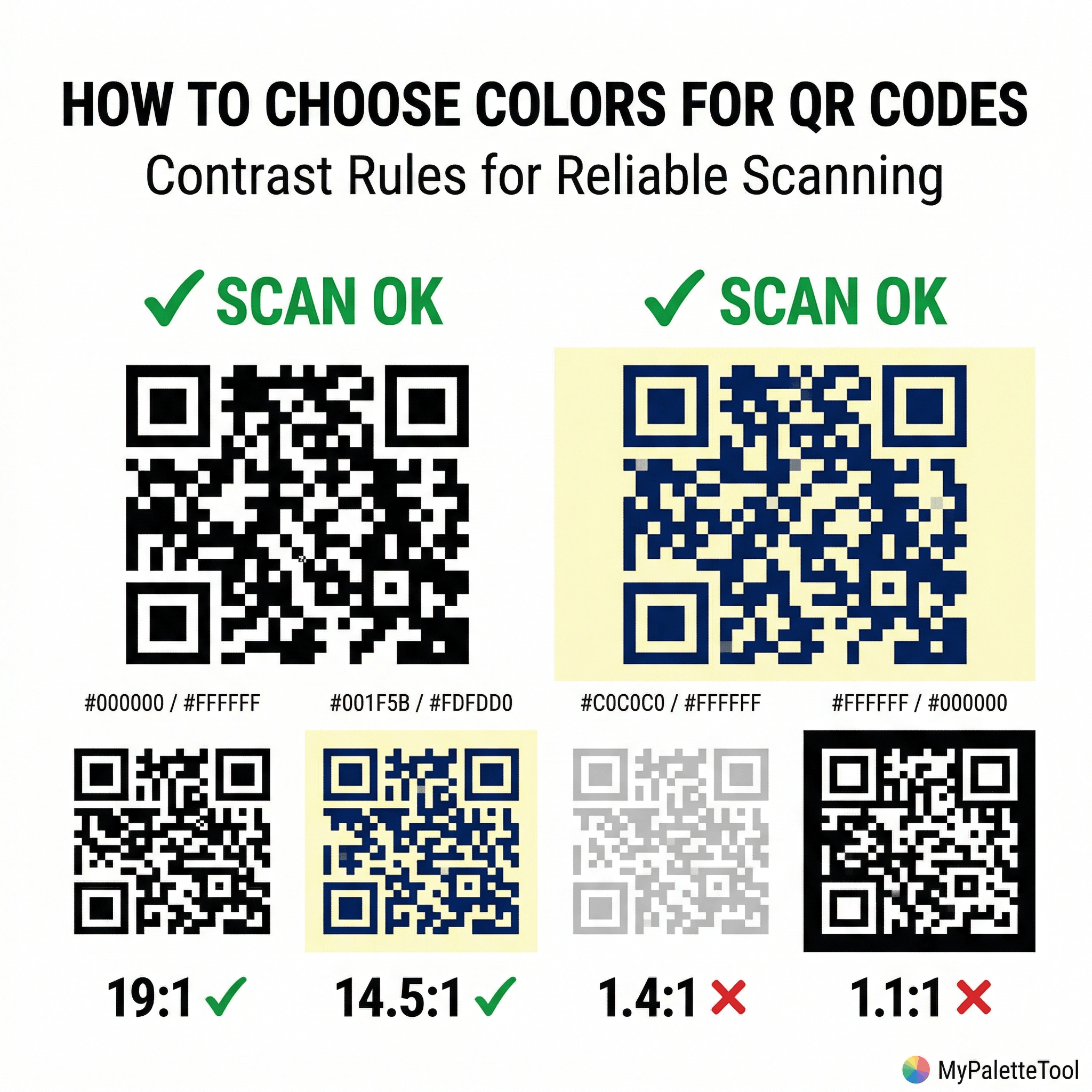
Key insight: A scanner doesn't care if your code is blue on white or navy on cream. What it cares about is whether the dark and light areas are sufficiently different in brightness.
This means color is allowed — with one non-negotiable rule: The dark modules must always be darker than the background, never lighter.
The One Rule You Cannot Break
Dark modules = dark. Background = light. Always.
Inverted QR codes (light pattern on dark background) will fail to scan in most readers. The QR spec requires the finder patterns (the three corner squares) to be dark on light.
- Will scan: Black modules on white background
- Will scan: Dark navy modules on cream background
- Will scan: Dark teal modules on light gray background
Minimum Contrast for Reliable Scanning
While there's no single universal standard, testing across popular scanners (iOS Camera, Android Camera, QR readers) shows:
| Luminance contrast | Scan reliability |
|---|---|
| Below 30% difference | Very unreliable |
| 30–50% difference | Unreliable in poor lighting |
| 50–70% difference | Good for most conditions |
| 70%+ difference | Excellent — recommended |
Practical target: Aim for the same contrast levels used for text accessibility. A 4.5:1 ratio (WCAG AA) is a solid baseline for most scanning conditions.
Check your QR color contrast with the Contrast Checker at MyPaletteTool — it calculates the exact luminance difference between any two colors.
Safe Color Combinations
These combinations scan reliably across all major readers:
High-Reliability Pairs
| Modules (dark) | Background (light) | Notes |
|---|---|---|
#000000 Black |
#FFFFFF White |
Perfect — reference combination |
#1A1A2E Dark navy |
#FFFFFF White |
Clean, professional |
#1D4ED8 Dark blue |
#FFFFFF White |
Brand-friendly |
#166534 Dark green |
#FFFFFF White |
Natural, eco brands |
#7C2D12 Dark brown |
#FEF3C7 Cream |
Warm, artisan feel |
#1E1B4B Deep indigo |
#F0F9FF Ice blue |
Subtle branded look |
#000000 Black |
#FEF9C3 Yellow |
High contrast, eye-catching |
#312E81 Deep purple |
#FAF5FF Lavender |
Elegant, beauty brands |
Medium-Risk Pairs (Test Before Printing)
| Modules | Background | Risk |
|---|---|---|
#1D4ED8 Blue |
#DBEAFE Light blue |
Low contrast — test carefully |
#065F46 Dark green |
#D1FAE5 Light green |
Monochromatic risk |
#7C3AED Purple |
#EDE9FE Lavender |
Check luminance difference |
Combinations to Avoid
❌ Red modules on green background (or vice versa) — colorblind users and some scanners misread ❌ Any light color on dark background — inverted ❌ Metallic or gradient modules — inconsistent luminance breaks pattern recognition ❌ Orange or yellow modules on white — insufficient luminance contrast
Generating a Brand-Matched QR Color Palette
The cleanest approach is to derive your QR code colors directly from your existing brand palette.
Step 1: Get your palette
Use MyPaletteTool to generate or load your brand palette. Identify your darkest brand color.
Step 2: Verify the dark module color
Your QR module color should be your darkest brand color. Check it passes contrast:
- Open Contrast Checker
- Foreground: your dark brand color
- Background: your intended QR background
- Target: 4.5:1 or higher
Step 3: Generate the QR code
Use the free QR Code Generator at ToolCenterLab:
- Enter your URL or content
- Set the module color to your verified dark brand color
- Set the background to your verified light color
- Download as PNG or SVG
Step 4: Test before printing
Always test the generated QR code with at least three apps:
- iOS built-in Camera app
- Google Lens
- A dedicated QR reader app
Test in varying light conditions — bright, dim, and at an angle.
QR Codes with Logo Overlays
Many brands add a logo to the center of the QR code. This is possible because QR codes have built-in error correction that can reconstruct up to 30% of damaged or obscured data.
Safe logo overlay rules:
- Keep the logo to ≤ 20% of the total QR code area
- Use the highest error correction level (H — 30% recovery) when generating
- Ensure the logo background matches the QR background color
- Keep logos simple — detailed logos at small sizes create visual noise
Color considerations for logos on QR codes:
- The logo area's background must match the QR background exactly
- Don't let logo colors bleed into the module pattern
- White-bordered logos on colored QR backgrounds work well
QR Codes on Different Surfaces
Color choice depends heavily on where the QR code will be printed or displayed.
Print on White Paper/Packaging
Best conditions — highest flexibility with color. Stick to dark modules on white or cream.
Recommended: #1D4ED8 on #FFFFFF — scans from 10cm to 2m away.
Print on Kraft/Brown Paper
The paper itself is the background. Choose a module color dark enough relative to kraft brown (#C4A882 approximately).
Recommended: #000000 or #1A1A2E modules — always high contrast.
Digital Screens (websites, email, presentations)
Screens have high pixel density — most combinations work well here. More latitude for branded colors.
Recommended: Match your brand palette. Test at 72ppi size equivalent.
Dark Packaging or Dark Backgrounds
This is the highest-risk scenario. If you must place a QR on a dark background:
- Add a white margin/quiet zone around the code — minimum 4 module widths
- Set the QR background to white (within the quiet zone)
- Use black modules inside the white zone
Never rely on light-on-dark even if it looks high contrast visually — the QR spec requires it to be dark-on-light.
The Quiet Zone: Don't Forget the Margin
The quiet zone is the blank space around the QR code that separates it from surrounding content. It's required for reliable scanning — without it, readers may fail to detect the code boundaries.
Minimum quiet zone: 4 modules wide on all sides
Color rule: The quiet zone must be the same color as the QR background — not a different color.
- QR code with full white quiet zone, placed on dark card → scans reliably
- Dark modules are darker than background (never inverted)
- Luminance contrast ≥ 4.5:1 (checked with Contrast Checker)
- Quiet zone is at least 4 modules wide on all sides
- Logo overlay covers ≤ 20% of total area (if applicable)
- Tested with iOS Camera
- Tested with Google Lens
- Tested with a third-party QR reader
- Tested in dim lighting
- Tested at minimum expected scanning distance
Testing Checklist Before Deploying
Before printing or publishing a colored QR code:
Quick Reference
| Do | Don't |
|---|---|
| Dark modules on light background | Light modules on dark background |
| Check luminance contrast ≥ 4.5:1 | Use similar-brightness colors |
| Maintain quiet zone margin | Trim the quiet zone |
| Test with 3+ apps | Assume it scans because it looks right |
| Use brand dark color for modules | Use bright/saturated colors as modules |
| Keep logo ≤ 20% of area | Cover finder patterns (corner squares) |
Conclusion
Colored QR codes are completely achievable — as long as you respect the fundamental rule: dark modules, light background, with enough luminance contrast for reliable scanning.
Use our Color Palette Generator to find your brand colors, verify contrast with the Contrast Checker, and generate your QR code at ToolCenterLab. Test before you print, and your branded QR code will scan every time.
Related Articles
Generate your brand color palette at MyPaletteTool, then create your QR code at ToolCenterLab — both 100% free.