Color Palettes for Logos: From Concept to Export
Complete guide to choosing and exporting logo color palettes. Covers brand personality mapping, harmony selection, contrast validation, CMYK conversion, and multi-format asset export.
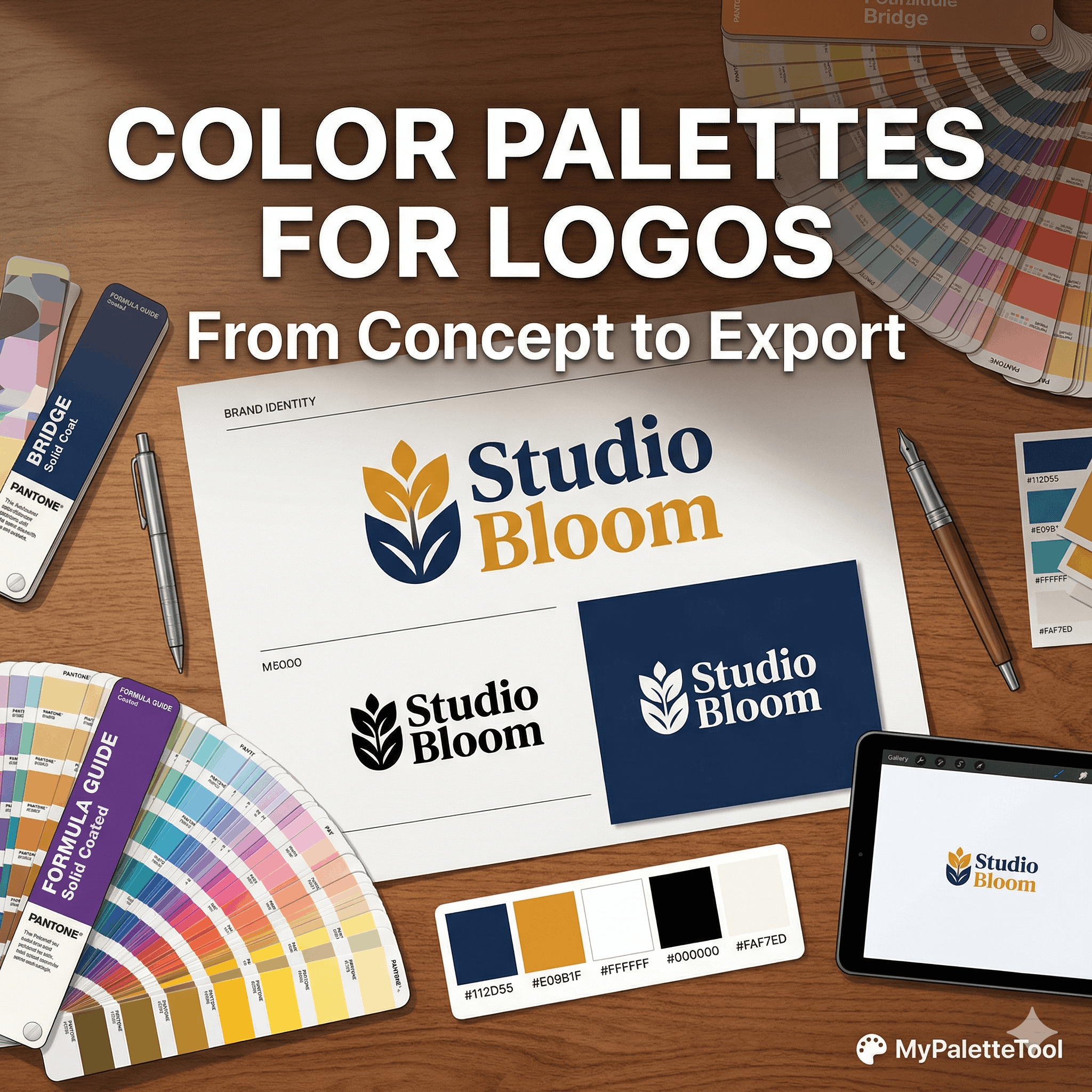
Color Palettes for Logos: From Concept to Export
A logo's colors are not decoration — they are the first and most persistent impression of a brand. Research shows that color increases brand recognition by up to 80%. But choosing logo colors without a clear process leads to arbitrary decisions that you'll regret when the logo is printed on a t-shirt or displayed against a wrong background. This guide walks you through the full process: from generating a palette to exporting production-ready assets.
Why Logo Color Choice Is Different From Web Color Choice
Web colors can be adjusted. A logo color is permanent infrastructure — it appears on business cards, signage, packaging, merchandise, social media, and every digital touchpoint.
Logo colors must work:
- At small sizes (favicon, app icon)
- At large sizes (billboard, banner)
- In full color
- In single color (black and white)
- In reverse (white on dark background)
- In CMYK for print
- In RGB for digital
- Against any background a customer might place them on
This broader set of constraints changes how you should select and test colors.
Step 1: Define the Brand Personality First
Color is a translation of personality. Before opening any color tool, answer these:
| Question | Your answer shapes the palette |
|---|---|
| What 3 words describe your brand? | Direct input to hue/saturation choices |
| Who is your target customer? | Age and culture influence color perception |
| Who are your top 3 competitors? | Differentiation from them matters |
| What industry are you in? | Industry color conventions exist for a reason |
| What emotion should the brand evoke? | Maps to specific color psychology |
Industry Color Conventions
Understanding industry defaults helps you decide whether to follow or deliberately break them:
| Industry | Dominant colors | Why |
|---|---|---|
| Finance & banking | Navy, dark blue, green | Trust, stability, growth |
| Healthcare | Blue, white, green | Cleanliness, calm, health |
| Food & beverage | Red, orange, yellow | Appetite stimulation, energy |
| Tech & SaaS | Blue, purple, white | Innovation, professionalism |
| Sustainability | Green, earth tones, brown | Nature, responsibility |
| Luxury | Black, gold, navy, deep purple | Exclusivity, quality |
| Children | Primary colors, pastels | Fun, safety, accessibility |
| Beauty & cosmetics | Pink, gold, black, nude | Femininity, luxury, naturalness |
Note: Breaking the industry norm can be powerful positioning — a finance brand in orange reads as approachable and disruptive. A food brand in black reads as premium. But the break must be intentional, not accidental.
Step 2: Generate the Palette
With brand personality defined, use MyPaletteTool to generate your logo palette.
Recommended Harmony for Logos
| Logo type | Recommended harmony | Why |
|---|---|---|
| Single icon mark | Monochromatic | Simplicity, elegance |
| Wordmark | Monochromatic or Analogous | Subtle, readable |
| Combination mark | Complementary | Visual separation of elements |
| Abstract symbol | Analogous or Triadic | Unique, memorable |
| Emblem/badge | Complementary or Triadic | Rich, traditional feel |
Target Palette Size for Logos
Start with 2–3 colors maximum. Most iconic logos use 1–2 colors:
- Coca-Cola: Red + White
- Nike: Black (or any single color)
- McDonald's: Red + Yellow
- FedEx: Purple + Orange
- Apple: Single color (adapts to context)
A 2-color logo requires:
- 1 primary brand color
- 1 secondary color (accent or neutral)
- White (implicit — needed for reverse version)
- Black (implicit — needed for monochrome version)
Generate your initial palette at MyPaletteTool with Complementary harmony. Lock your primary color, regenerate to explore secondary options.
Step 3: Evaluate the Colors Against Logo Criteria
Test 1: Contrast Between Logo Elements
The colors used in different parts of your logo must be distinguishable from each other and from white and black backgrounds.
Check every pair at Contrast Checker:
- Primary color vs white background
- Primary color vs black background
- Primary color vs secondary color
- Secondary color vs white background
Minimum ratio for logo elements: 3:1 (readable at small sizes)
Test 2: Monochrome Legibility
Your logo must work in single color. Export a grayscale version mentally:
Good sign: The logo is clearly legible in pure black or pure white Bad sign: Elements disappear or become indistinguishable without color
If your palette has colors with similar luminance (brightness), they'll look identical in grayscale — and your logo will be unusable for single-color printing, embossing, or embroidery.
Check: Use the grayscale preview in your design tool (Figma: View → Color Blindness Simulation → Achromatopsia).
Test 3: Small Size Test
Shrink your logo to 32×32px (favicon size) and 16×16px. Can you still read it or recognize the icon?
Logo colors that fail small sizes:
- Very similar hues (indistinguishable at small sizes)
- Light colors on white (disappear)
- Very thin strokes in colors that differ only in hue
Test 4: On Different Backgrounds
Every logo will eventually appear on:
- White backgrounds (most common)
- Dark backgrounds (dark mode, dark packaging)
- Colored backgrounds (co-branding, campaigns)
- Photographic backgrounds (social media, ads)
Test your logo colors on each. You need at least two versions: standard and reversed.
Step 4: Define the Complete Logo Color System
A professional logo color system includes more than the visual colors — it includes format variants and usage rules.
Primary Palette
Brand Primary:    #1D4ED8  (Pantone 286 C / CMYK 93/68/0/0)
Brand Secondary:  #F59E0B  (Pantone 7549 C / CMYK 0/32/100/0)
Brand White:      #FFFFFF
Brand Black:      #0A0A0A
Approved Logo Versions
| Version | When to use |
|---|---|
| Full color on white | Default — digital, print on light backgrounds |
| Full color on dark | Dark backgrounds, dark mode, dark packaging |
| Single color (black) | Embossing, letterpress, newspaper, fax |
| Single color (white) | Reversed on dark backgrounds, engraving |
| Single color (brand primary) | Single-color printing, colored backgrounds |
Color Conversion Values
For every logo color, document all format variants:
Brand Primary Blue
  HEX:     #1D4ED8
  RGB:     rgb(29, 78, 216)
  HSL:     hsl(226, 76%, 48%)
  CMYK:    93 / 68 / 0 / 0
  Pantone: 286 C

Brand Secondary Amber
  HEX:     #F59E0B
  RGB:     rgb(245, 158, 11)
  HSL:     hsl(38, 92%, 50%)
  CMYK:    0 / 35 / 96 / 4
  Pantone: 7549 C
Convert between digital formats at MyPaletteTool Color Converter. For Pantone matching, use a physical Pantone swatch book or a dedicated Pantone tool.
Step 5: Export Production-Ready Assets
With colors finalized, you need multiple export formats for different applications.
Digital Formats
SVG — Master file Always start with SVG. Logos are vector — they must scale to any size without quality loss. Use embedded color values (not linked).
<svg xmlns="http://www.w3.org/2000/svg" viewBox="0 0 200 60">
  <path d="..." fill="#1D4ED8"/>
  <text fill="#0A0A0A" font-family="...">Brand Name</text>
</svg>
PNG — Raster export For use in contexts that don't support SVG (some email clients, certain CMSes):
- Full color on transparent: 1x, 2x (retina), 3x
- White version on transparent
- Favicon sizes: 16px, 32px, 48px, 180px (Apple touch icon)
Use the Image Resizer at ToolCenterLab to generate multiple sizes from your source PNG — no design tool required.
WebP and AVIF — for web performance when SVG isn't possible.
Print Formats
PDF / AI / EPS — vector formats for print production
- Ensure all colors are converted to CMYK
- Embed fonts or convert text to outlines
High-resolution PNG (300dpi) — for basic print needs like word processor documents, presentations
Social Media Sizes
| Platform | Logo placement size | Notes |
|---|---|---|
| Facebook Page | 170×170px | Circle crop on mobile |
| 110×110px | Circle crop | |
| Twitter/X | 400×400px | Circle crop |
| 300×300px | Square | |
| YouTube | 800×800px | Circle crop |
| Favicon | 32×32px | ICO or PNG |
| Apple Touch Icon | 180×180px | PNG, no transparency |
Export at 2× minimum for retina displays. Resize with ToolCenterLab Image Resizer.
Color Mistakes That Ruin Logos
Too Many Colors
Every additional color is a constraint: more complex to print, more expensive for merchandise, harder to use consistently. Start with 2, add a third only if it earns its place.
Trendy Colors
Logo colors should last 10–20 years. The "color of the year" will be dated in 2 years. Choose colors that will age well — typically those with clear psychological grounding rather than current fashion.
No Consideration for Print
Digital screens emit light; print absorbs it. Your vibrant electric blue on screen may be muddy in CMYK print. Always get a print proof before finalizing a logo color system.
Insufficient Contrast for All Use Cases
A logo that looks great on white may disappear on a yellow tote bag or clash with a partner brand's blue packaging. Test relentlessly against diverse backgrounds before signing off.
Forgetting the Reversed Version
Many designers finalize the standard version and forget the reversed (white on dark) version until a client asks for it. Build the reversed version into your deliverables from the start.
Quick Reference: Logo Color Checklist
- Brand personality defined before palette selection
- 2–3 colors maximum
- All pairs pass 3:1 contrast on white and black backgrounds (check with Contrast Checker)
- Monochrome version is legible
- Legible at 16×16px
- Tested on white, black, and colored backgrounds
- CMYK values documented for every color
- Pantone equivalent identified for physical production
- SVG master file with embedded colors
- PNG exports at 1×, 2×, 3× scales
- Reversed (white) version prepared
- Single-color (black) version prepared
- Social media crops tested in circle format
- Brand guidelines document created
Conclusion
Great logo colors don't happen by accident. They start with a clear brand brief, flow through a structured palette generation process, get validated against real-world use cases, and are documented for consistent application by anyone who touches the brand.
Your tool stack:
- MyPaletteTool — generate and explore color palettes
- Contrast Checker — validate readability
- Color Converter — get all format values
- Image Resizer at ToolCenterLab — generate all export sizes
Related Articles
Generate your logo color palette at MyPaletteTool, resize assets at ToolCenterLab — both free, no signup.